
Will Your AI Illustrations Actually Print?
Your art looks flawless on screen. Then the KDP proof copy arrives in the mail — and the illustrations are soft, fuzzy, a little blurry. Here's exactly why that happens, and the one-click fix that makes AI illustrations genuinely print-ready.
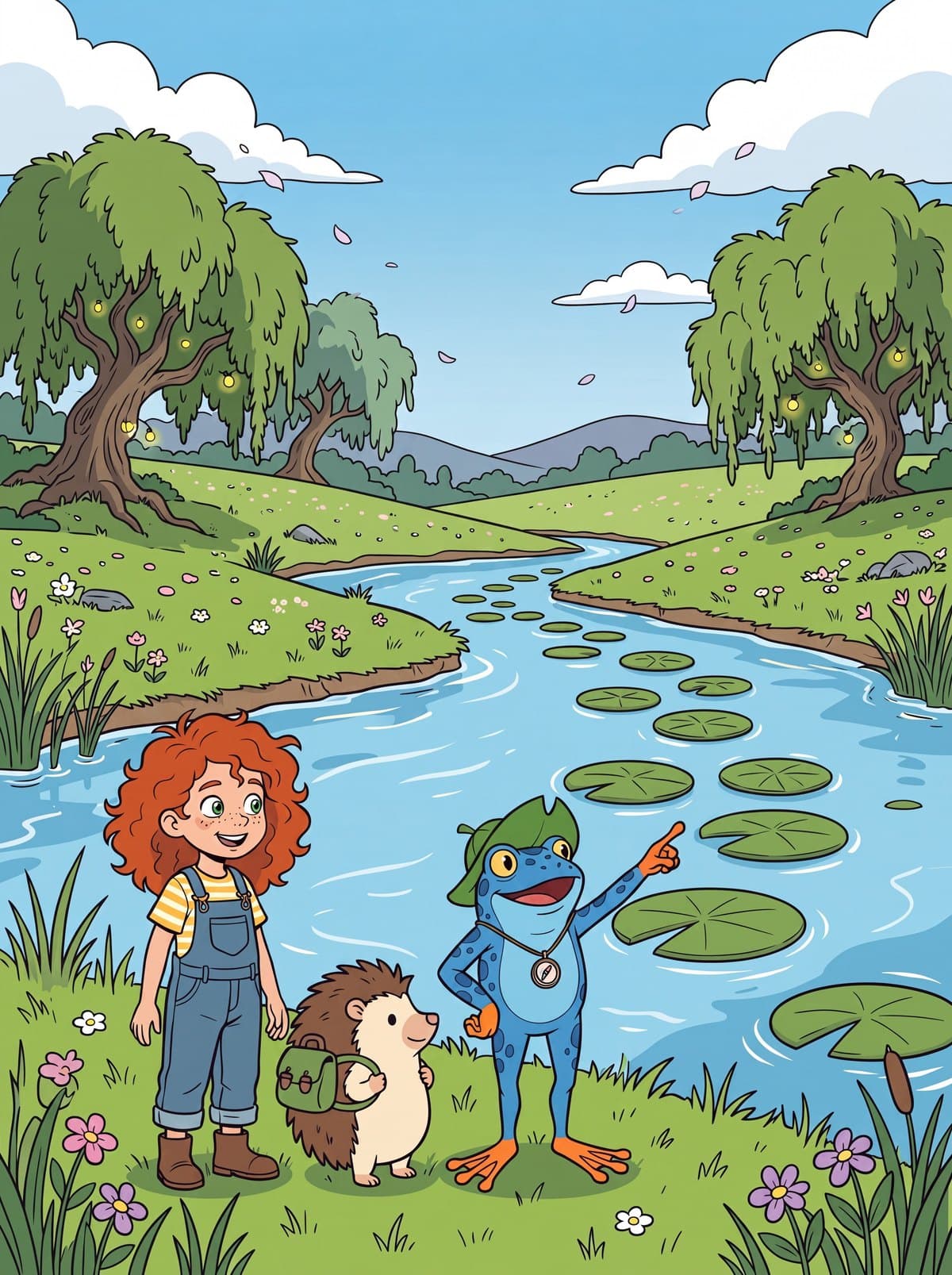
Screens flatter your art. Print doesn't.
A phone screen shows roughly 100–150 dots per inch. A printed book is held to a much higher bar: 300 DPI. That single number is the whole story.
Most AI image tools hand you an illustration somewhere around 1,000 pixels wide. On a screen, that's plenty — it fills a phone edge to edge and looks crisp. Blown up to the size of an actual printed page, the same pixels get stretched thin, and the printer has to guess at everything in between. The result is the soft, slightly out-of-focus look that screams "self-published."
The 300 DPI rule, in plain numbers
To print sharply, you need page width in inches × 300 pixels. An 8-inch picture-book page needs 2,400 pixels across. Here's how a typical ~1K generation stacks up against common trim sizes — and what upscaling buys you:
| Printed page width | Pixels needed @ 300 DPI | A ~1K illustration | After Upscale 4K |
|---|---|---|---|
| 6 in (small square / digest) | 1,800 px | ~170 DPI — soft | 384 DPI ✓ |
| 8 in (standard picture book) | 2,400 px | ~128 DPI — soft | 288 DPI ✓ |
| 8.5 in (large format) | 2,550 px | ~120 DPI — soft | 271 DPI ✓ |
Print standard is 300 DPI. A single ~1,024 px generation falls short at every common trim size; the upscaled version clears it.
Same picture on screen — very different in print
Here's the trap. At screen size, a standard illustration and a print-ready one look identical. You'd never know there was a problem until the book is in your hands.
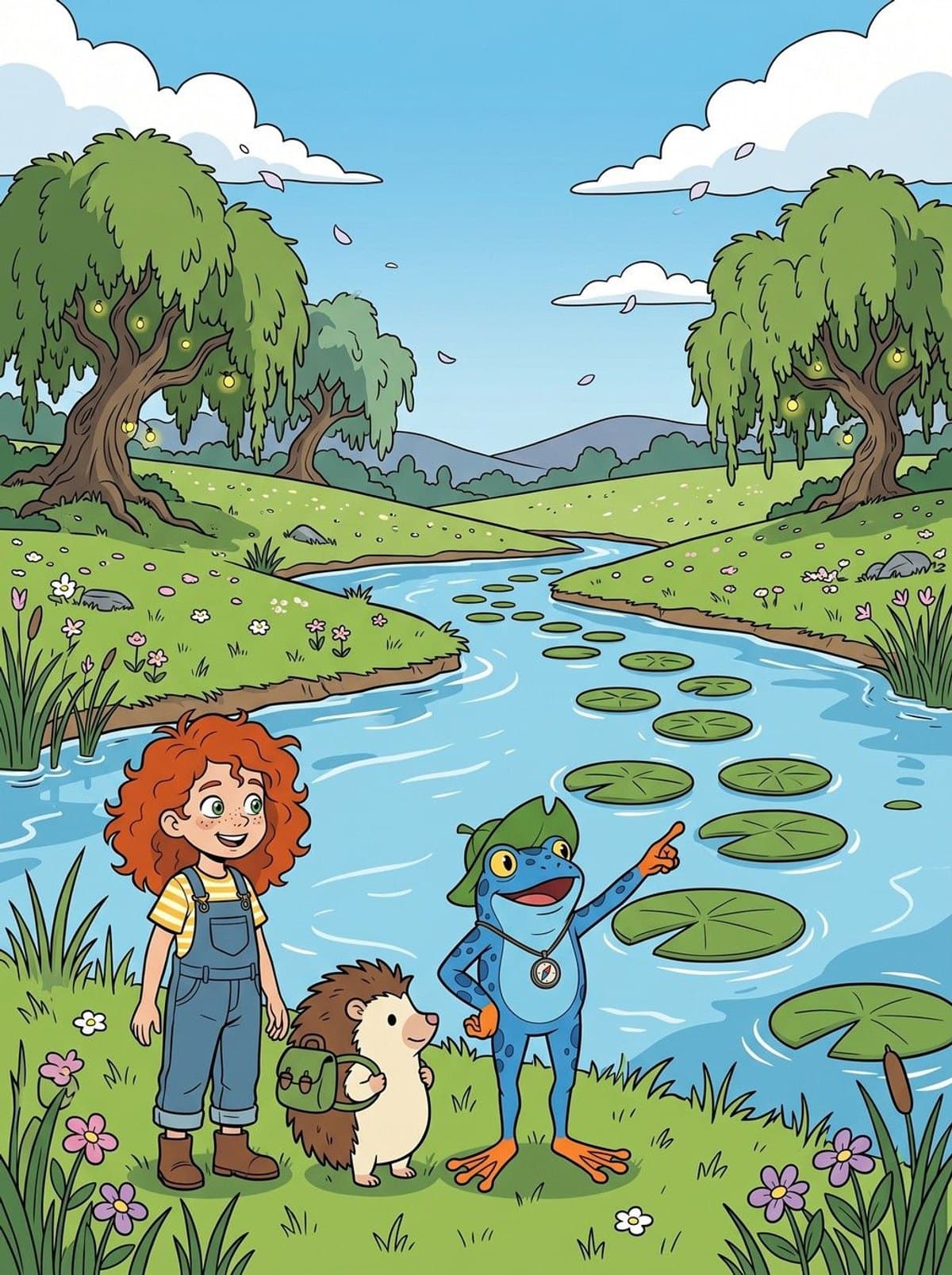
Now zoom in to the detail a reader sees up close on a printed page — the same corner of the same illustration. Drag the slider to wipe between the standard generation (enlarged to print size) and PulseBook's upscaled version:
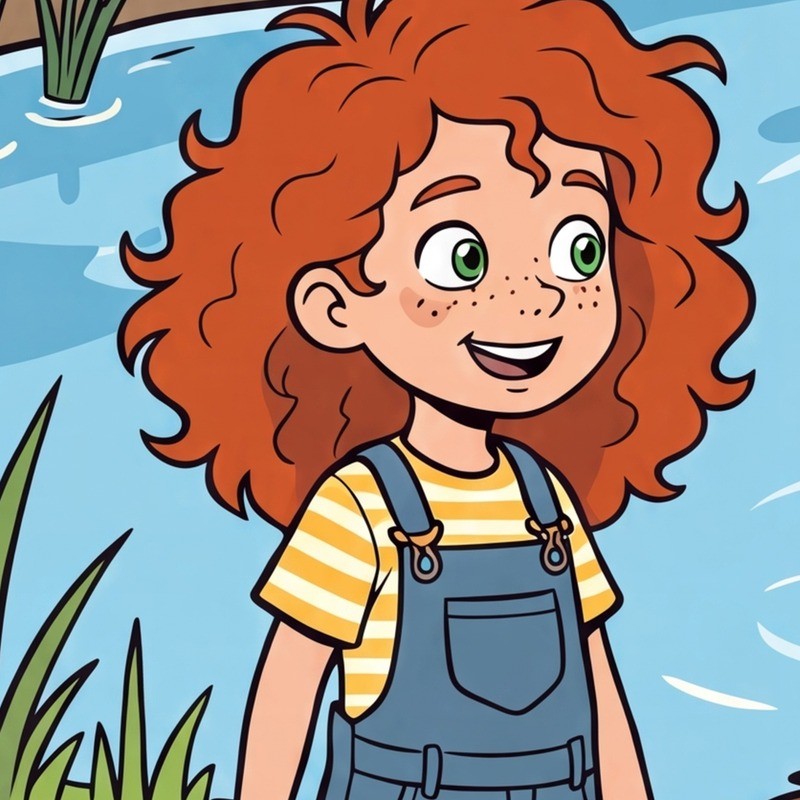
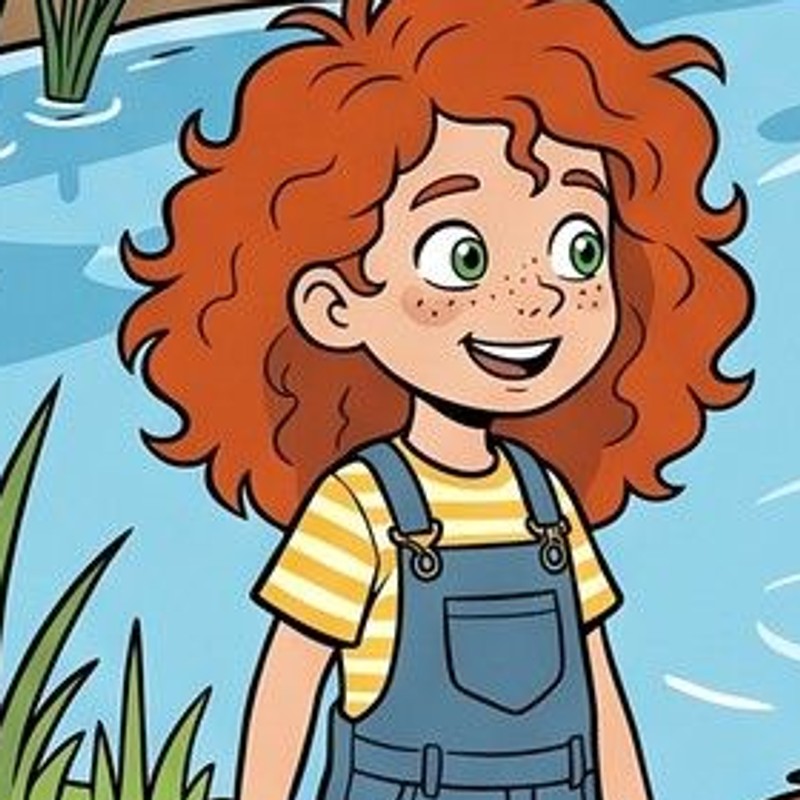 BEFORE · 1KAFTER · 4K
How to make your illustrations print-ready in PulseBook
It's one button. On any scene, character, or location image:
- Open the illustration you want to print.
- Click Upscale 4K.
- PulseBook re-renders a high-resolution version of that exact image — roughly 2,300 × 3,000 pixels — comfortably clearing 300 DPI for standard children's-book trim sizes.
It's the same artwork: same characters, same colors, same composition — just rendered with the detail a printer needs. Nothing is redrawn, nothing wanders off-model. You can do it on every page before you export your book for print.
When do you actually need this?
- Paperback or hardcover (KDP, IngramSpark, etc.) — yes. This is exactly the case upscaling solves.
- Posters, prints, or merch from your book art — yes; the bigger the print, the more it matters.
- Ebooks and Kindle — not really. Screens are forgiving; the standard resolution is fine.
The rule of thumb: anything that goes on paper, upscale first. Anything that stays on a screen, you can leave as-is.
Make a print-ready illustrated book
50+ art styles, consistent characters, and one-click 4K upscaling for print. Free to start — no credit card.
Start Free